With the Team plan your office shares one house style on exports and view links, starts homes from templates and can post a message for everyone.
This is for teams. An owner or admin sets it up.
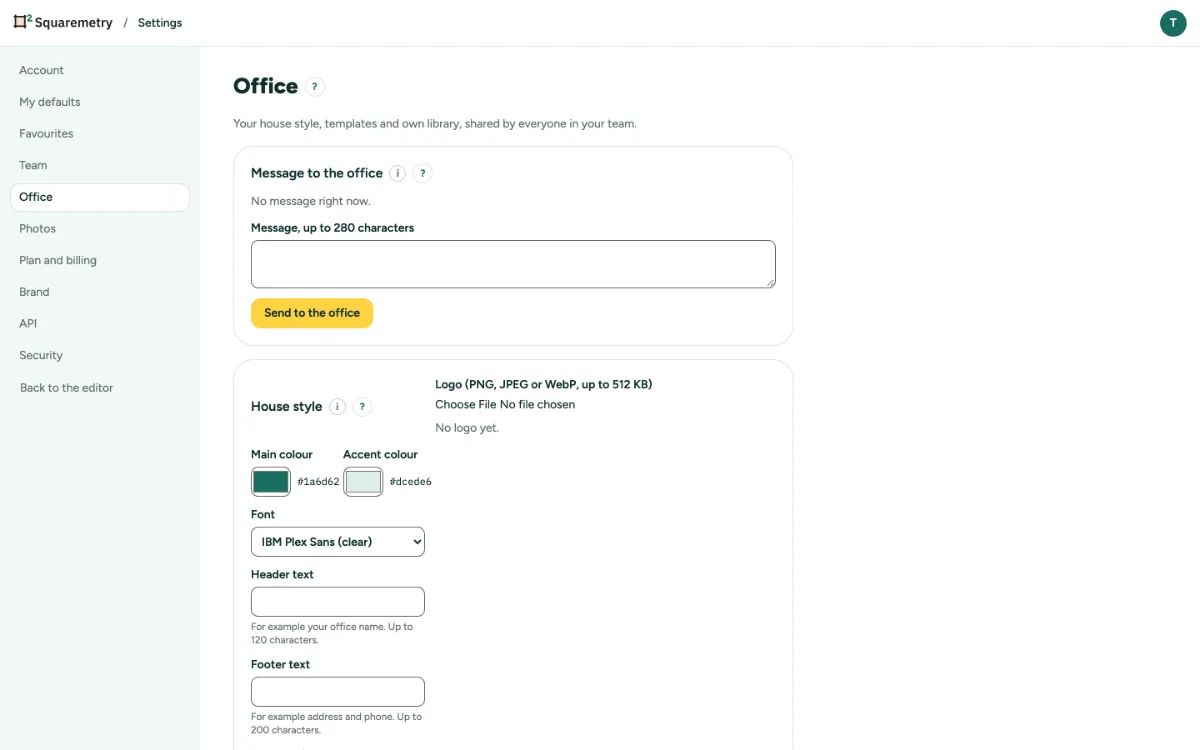
House style, templates and a message to the office: step by step
1. Open Office
Open Settings, tab Office. Without the Team plan you see Part of the Team plan.
2. House style
Set the logo, Main colour, Accent colour, Font, Header text, Footer text and a Disclaimer on view links. Check the Preview and click Save house style.
3. Templates
Choose a Home, a Template name and what to keep (Whole plan or Rooms only), and click Save as template. Anyone in the team clicks New home from this.
4. Message to the office
Type a message of up to 280 characters and click Send to the office. Everyone sees it once at the top of the editor.
Messages you may see
- These colours are hard to read. Choose a darker main colour or a lighter accent colour.
- Only an owner or admin can change this.