Start a team for your office, invite colleagues by email and work on the same houses together. Team is $69 a month or $399 a year for 5 people, up to 20 with extra seats.
You need a free account for this.
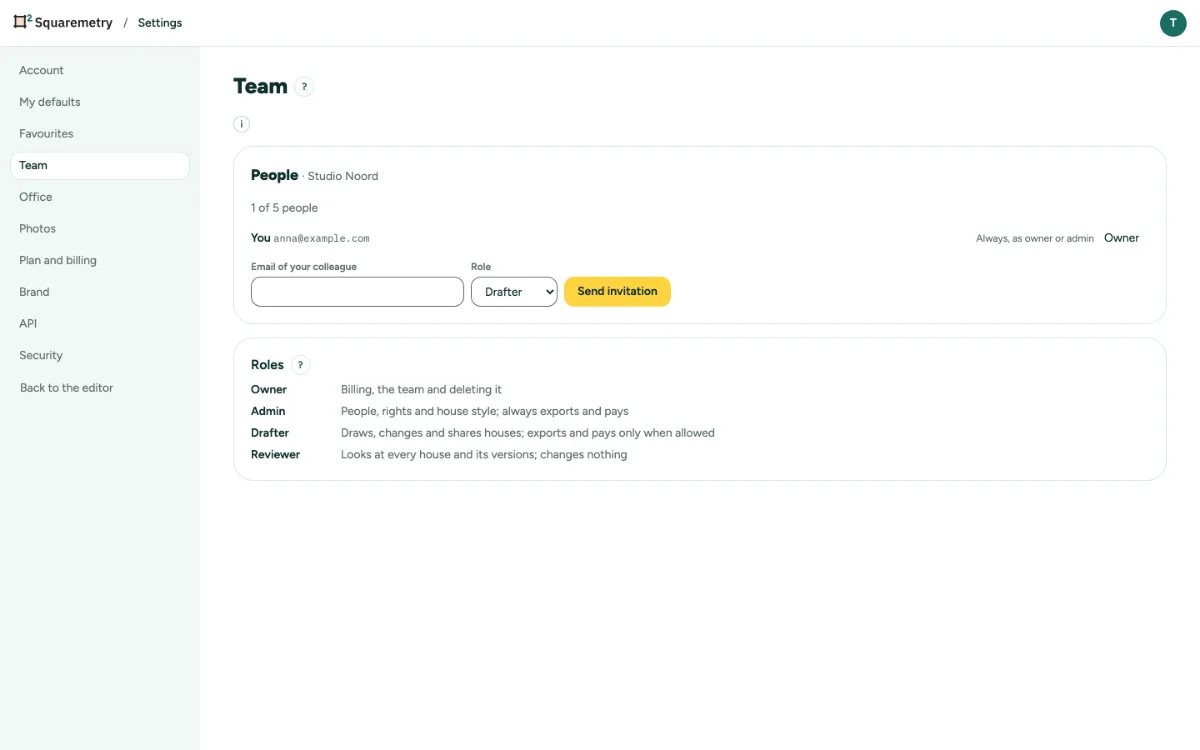
Invite your team: step by step
1. Start a team
Open Settings, tab Team. Type an Office name and click Create team.
2. Invite a colleague
Type the email of your colleague, choose a Role and click Send invitation. The invitation works for 7 days. Resend or Revoke it in the list.
3. Join the team
Your colleague signs in with the email address the invitation went to, opens the link and clicks Join the team.
4. Know the roles
An Owner handles billing, the team and deleting it. An Admin handles people, rights and house style, and always exports and pays. A Drafter draws, changes and shares houses. A Reviewer looks at every house and changes nothing.
5. Give the right to export
Tick May export and pay for a Drafter or Reviewer who may export and pay.
6. Take Team
An owner or admin opens Settings, then Plan and billing, ticks the box and chooses Take Team for $69 a month (5 people) or Take Team for $399 a year (5 people). Switching between month and year is possible after the period you paid for.
7. Team given by Squaremetry
Squaremetry can give an office Team by hand, until a date, without paying. Plan and billing then shows Team (granted until a date). On that date it stops, and everything you made stays. To keep Team, take it before then; it replaces the granted Team at once, with no double seats.
8. Add or remove a seat
An owner or admin clicks Add a seat in Plan and billing for one more person: $12 a month, or $69 a year with Team per year, up to 20 people. Remove a seat takes an extra seat away again. If every seat is in use, first remove a person or an invitation.
9. New homes each month
Team includes 75 new homes a month for 5 people, plus 15 for each extra seat. Plan and billing shows how many counted this month. A home counts once: exporting it again is free. Above that, one more home is $4, or 5 more for $15, only for that month.
10. Switch between Pro and Team
Does the team have Pro? An owner or admin clicks Switch to Team in Plan and billing: you pay the difference for the rest of this period now, then Team at its usual price. Switch back to Pro stops Team at once and extra seats go; Paddle keeps the unused part of Team as credit for your next bills. Pro has room for 5 people and invitations.
11. Pro in an office is for one person
Pro in an office without Team covers only the homes made by the person who took Pro out. A colleague sees this in Export, and exports with the mark or unlocks that one home. For everyone in the office, take Team. An office that already had Pro before this rule keeps it for everyone until that Pro ends.
Messages you may see
- Pro in this office covers only the homes of the person who took it out. Ask your admin for Team: then it covers everyone.
- All seats of this team are taken. An owner or admin can add a seat in Plan and billing, up to 20 people.
- Your role cannot do this. Ask an owner or admin.
- Your office has not given you the right to export and pay. Ask an owner or admin.
- This invitation does not work any more. It may have expired, been revoked, or be meant for another email address.
- 6 seats are in use. Remove a person or an invitation first.
- The team now has 6 seats.
- 6 people and invitations are in this team. Pro has room for 5: remove people or invitations first.
- Your plan stops at the end of this period. Switching is possible after that.