A passkey lets you sign in with your face, fingerprint or device PIN. The email code keeps working too.
You need a free account for this.
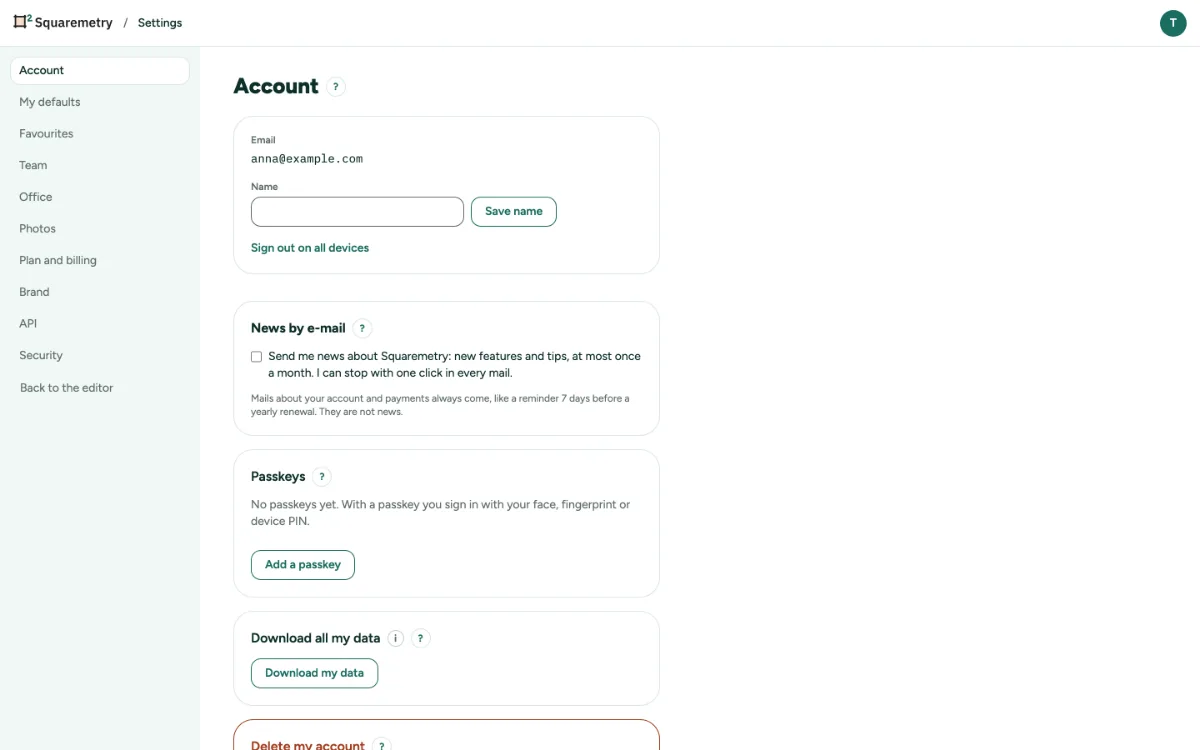
Sign in with a passkey: step by step
1. Add one after signing in
After a sign-in with a code you are offered a passkey once. Click Add a passkey, or Not now.
2. Sign in with it
Next time, click Sign in with a passkey in the sign-in window.
3. Manage passkeys
Open Settings, tab Account. Under Passkeys, click Add a passkey or Remove.
Messages you may see
- Passkey added. Next time you can sign in with it.
- The passkey was cancelled. You can use the email code instead.
- That passkey did not work. Use the email code instead.