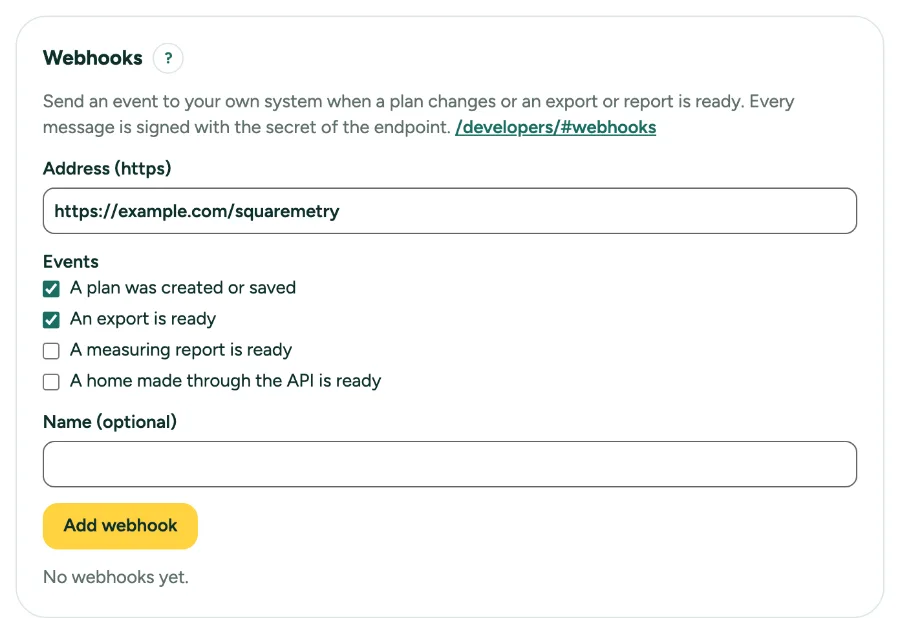
A webhook sends a signed message to your own address when a plan is created or saved, an export is ready or a measuring report is ready.
This needs Pro.
1. Open Settings, API
Webhooks sit under the API keys. You need to be owner or admin of a workspace with Pro or Team.
2. Add a webhook
Type an https address, pick the events and click Add webhook. Copy the signing secret: we show it only once.
3. Check the signature
Every message has the header Squaremetry-Signature with t (the time) and v1, the HMAC-SHA256 of "t.body" with your secret. Refuse a message when it does not match or when t is older than 5 minutes. The developer page has an example.
4. Skip doubles
Squaremetry-Event-Id stays the same on every try and on Send again. If you saw the id before, answer 200 and do nothing.
5. When your system is down
Anything but a 2xx answer within 10 seconds is tried again after 1, 5 and 30 minutes, then 2, 6, 12 and 24 hours. After 8 tries we give up; after 20 given up in a row the webhook switches itself off.
6. Test, switch off, new secret
Send test event sends a ping. Last deliveries lists what was sent, with Send again. New secret replaces the secret at once.
Messages you may see
- Use an address that starts with https://.
- This address is in a private network. Use a public address.
- Switched off after 20 failed deliveries in a row. Fix the address, then switch it on.