The app is the same editor on an iPhone, iPad or Android phone. It works without a connection, keeps your projects on the device and shares the plan file.
Use the app on site: step by step
1. Open a project
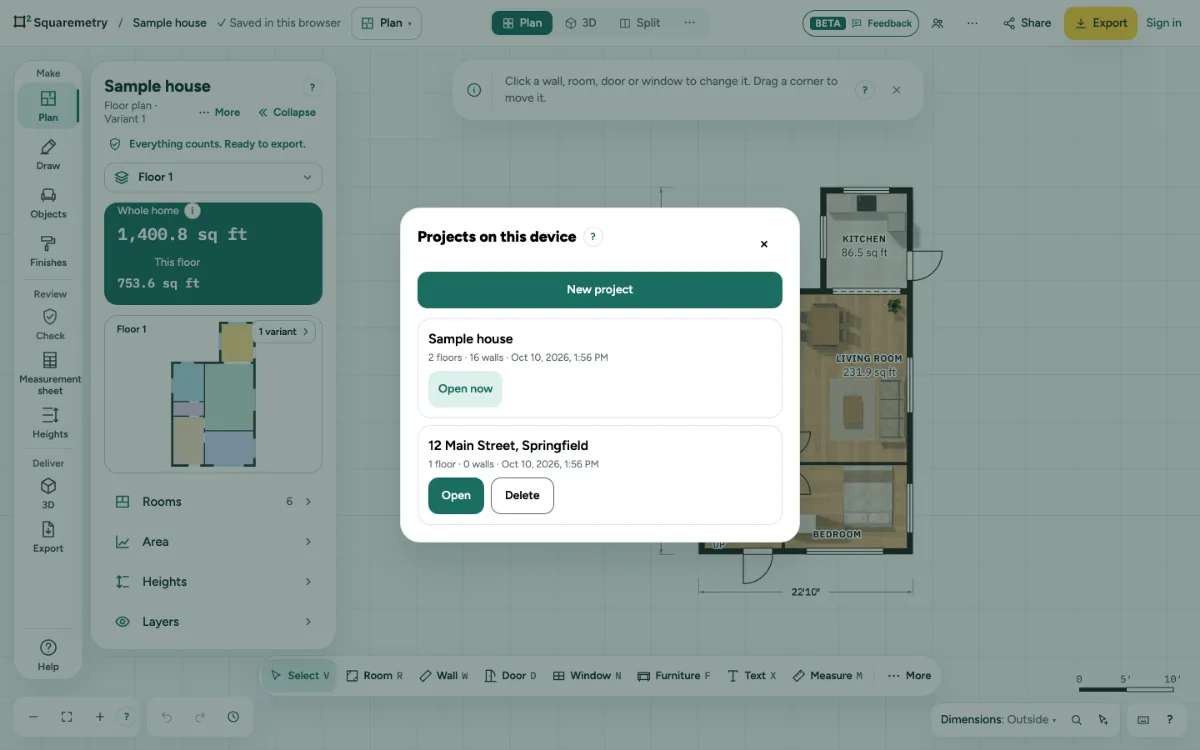
In More (on a tablet: … at the top right), open File and choose Projects on this device. The newest project is at the top. Open one, or tap New project and type the address or a name. The plan that was open is saved first. The list shows your projects and those without an account; projects of another account that was signed in here stay hidden until it signs in here again.
2. Work without a connection
Everything you draw is kept on the device straight away, also in a basement without signal. When you are signed in, the plan goes to your account as soon as there is a connection again.
3. Photos already in a plan
New photos can no longer be added in the app. Photos and photo points that a plan already has stay; the location of the phone was removed from every photo. A photo goes into the report only when you choose.
4. Share the plan file
In More (on a tablet: … at the top right), open File and choose Share plan file and send it by mail, chat or AirDrop. The other person opens it with File, Open a file.
5. Delete a project
In Projects on this device, tap Delete and confirm. The project that is open now cannot be deleted. A project that is also in your account stays there.
Messages you may see
- This device is full. Free up some space, then try again. Your plan is still open.