Every change is one step you can undo. The history box next to Undo lists them all, newest first, so you can go back to any point with one click. Pin it to keep it on screen while you draw.
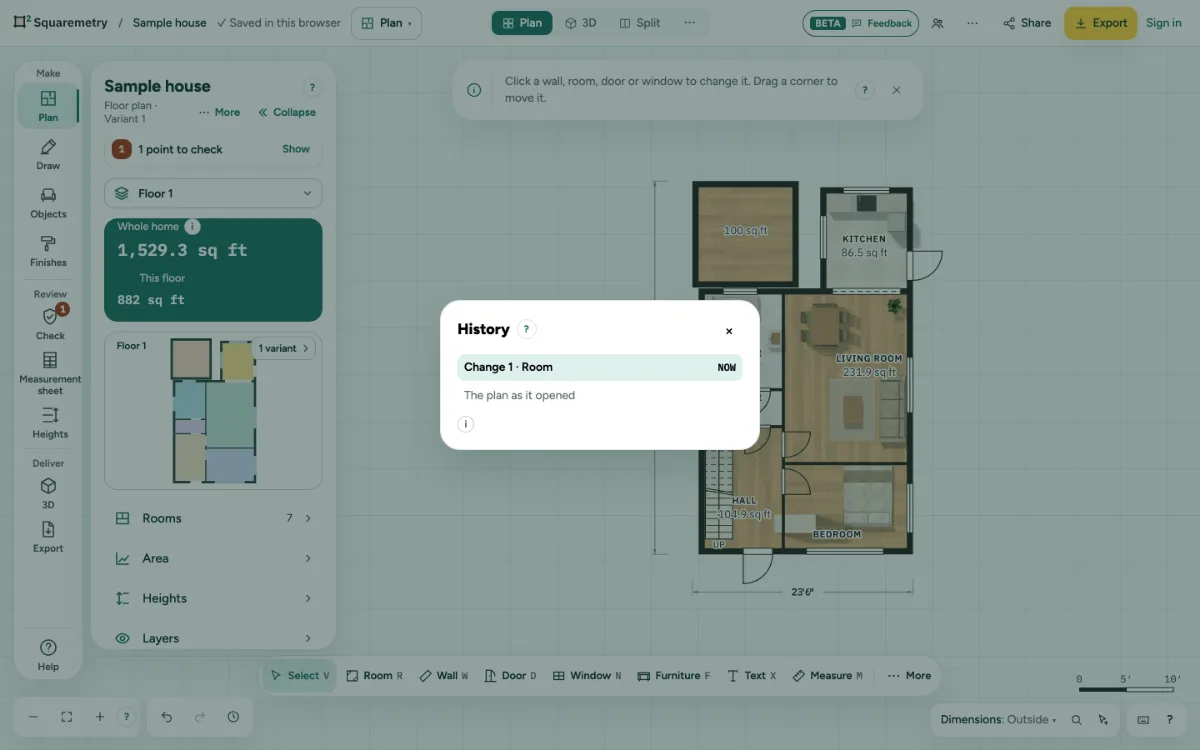
Undo, redo and the history of changes: step by step
1. Undo and redo
Press ⌘Z to undo and ⇧⌘Z to redo, or use the arrows next to the zoom.
2. Open the history box
Click the clock next to Undo and Redo at the bottom left, or press J. Each step shows a clear name in your language, like Wall thickness 22 cm → 27 cm or Room renamed: Hall, the editor where you made it and when, like 2 min ago. Every small change is its own step; clicking + or − on the same field within a second counts as one, and so do taps on the arrow keys (←↑→↓) on the same thing. On a phone it is History box in More, a sheet at half height that can stay open.
3. Go back
Click a step, or move with the arrow keys and press Enter, to go straight to that point. Undone steps show grey until you make a new change; then they drop off, as with Undo. ⌘Z and ⇧⌘Z walk the same list.
4. Keep it on screen
Click Pin in the box. It becomes a panel that stays open while you draw, and new steps appear as you work. Drag its header to move it, or focus the header and use the arrow keys. Close it with × or J. Your browser remembers where it was.
5. The whole list
Whole list at the bottom of the box opens the History window, also under Help and with ⌘K.
Parts on the screen
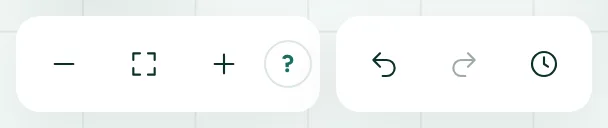
Zoom, undo and redo. Zoom out, fit the whole plan, zoom in and help; then undo, redo and the history of changes.
Shortcuts
- ⌘Z
- Undo
- ⇧⌘Z
- Redo
- J
- Open or close the history box
On Windows and Linux, use Ctrl where the Mac has ⌘.
Messages you may see
- No changes yet. Every change you make shows here.