On an iPhone Pro or iPad Pro (with LiDAR) the app scans room by room and joins the rooms into a floor with walls, doors and windows. Every scanned wall is marked as scanned, with how sure the scan was.
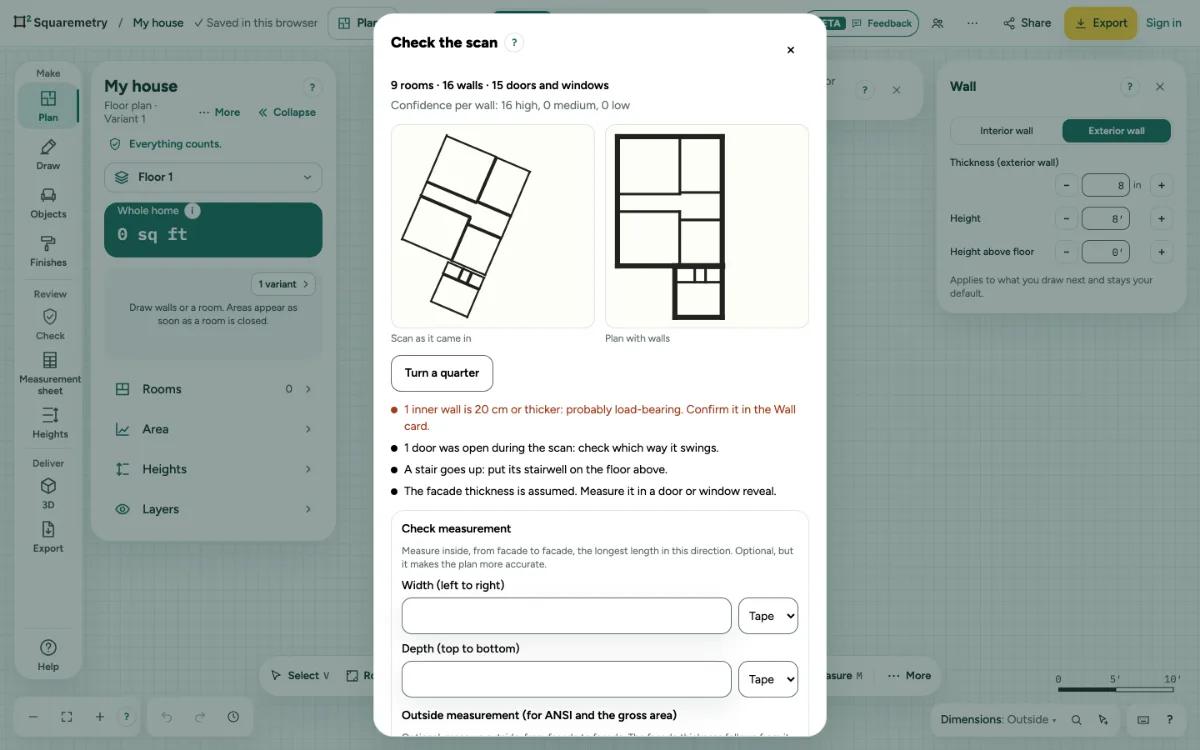
Scan a room with your phone: step by step
1. Start the scan
In More (on a tablet: … at the top right), open File and choose Scan a room. The first time a short tour explains the steps. Turn on the lights, open the curtains and close doors to rooms you do not scan yet.
2. Room by room
Walk slowly along the walls. When the room is closed, tap Done with this room. You see the walls, doors, windows and furniture it found. Choose Next room, Scan this room again or Floor done.
3. Pause and add rooms later
Tap Pause at any time. The rooms so far stay on this device, also without a connection. Continue later via File, Scan a room, and walk back to the last room first.
4. Check the scan
After Floor done you see the scan as it came in next to the plan with walls. Walls the scan was unsure about are orange. Turn a quarter if the front is not at the bottom. If the scan saw low walls but no roof, fill in the knee wall, the pitch and the flat ceiling.
5. One check measurement
Measure inside, from facade to facade, the longest length in one direction and type it. Within 1% the plan is corrected; with more you are told to measure again or scan that side again. An outside measurement, from facade to facade, gives the facade thickness for ANSI and the gross area.
6. Put it in the plan
Tap Put in the plan. The scan becomes a floor you can edit like any drawing; one undo takes it out again. The raw scan stays on this device so you can check it later.
7. Before a report
In Plan, on Check and on the Measurement sheet (Review in the rail), a scanned floor shows These measurements are scanned: check them. Measure the marked walls, then tap I have measured them again.
8. No LiDAR
On a phone or tablet without LiDAR the app says so and offers other ways: Draw the room, Type rooms as a list, or Open a scan file (a RoomPlan JSON or USDZ from another app). An opened scan goes through the same check as a scan from the app.
Messages you may see
- Scanning works on iPhone Pro and iPad Pro. You can draw or type the room.
- Scan stopped. Nothing is changed in your plan.
- This device is full. Free up some space, then scan again. Your plan is not changed.