Two presets in Export set everything for a common job in one click: a listing picture or an escape plan.
Free as a small PNG with a watermark. In full: unlock the home (your first home is free) or take Pro.
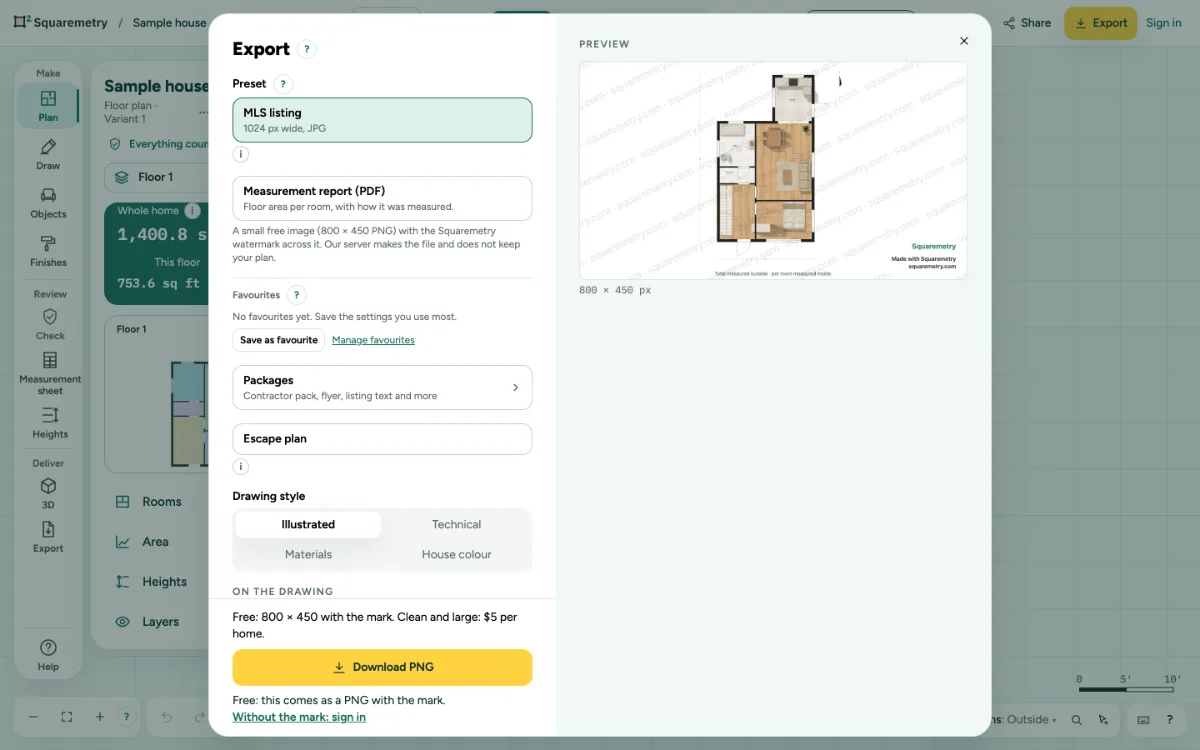
Export presets: listing image and escape plan: step by step
1. Image for the listing
In Export, click Image for the listing (in English for the US: MLS listing). It sets JPG, 1024 px wide and the Illustrated style. Without Pro, Team or an unlocked home it comes as the free PNG with the mark, and the line under the button says so. Check the photo rules of the site you use. The contractor pack, the flyer and the listing text are under Packages.
2. Escape plan
Place escape plan symbols first with Place (P), tab Escape plan. Then click Escape plan in Export. You get a PDF with only the plan, a legend and the title ESCAPE PLAN. The preset also turns on On the drawing › Symbols, so the exit, extinguisher and alarm are on the plan.
3. Turn a preset off
Click the preset again. Changing the format, size or style also turns it off.
4. For Funda
With a plan to the Dutch measuring instruction, Export shows For Funda: Package for Funda (ZIP) holds the FML, a PNG per floor and the measurement report when it is ready. It belongs with Pro, Team or a home with the measurement report, like the FML itself.
Messages you may see
- There are no escape plan symbols on this level yet. Place them first with Place (P), tab Escape plan.
- Made with our own pictograms. Check with your local rules which signs and colors are required.
- Funda has not yet confirmed that it accepts FML files from other programs. Until then, give your agent the PNG or the PDF.