The Place tool adds chimneys, columns, beams and skylights, escape plan and service symbols, raised ground, and the north arrow.
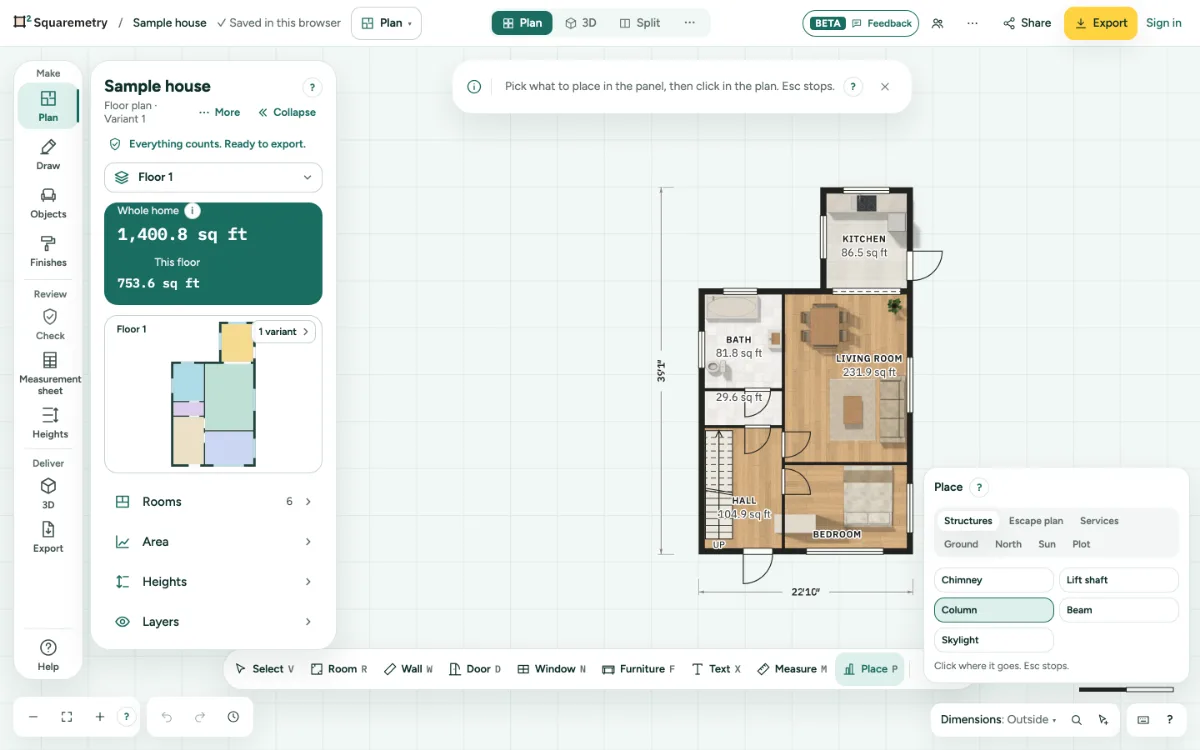
Place structures, symbols, ground and north: step by step
1. Open Place
Press P. Pick a tab: Structures, Escape plan, Services, Ground, North, Sun or Plot. In Plan, More › Outside opens Plot, Driveway and garden, Ground and North directly.
2. Place something
Pick what to place, then click in the plan. A beam goes between walls; a skylight goes in a roof. A symbol does not go on a spot that already has one of the same kind at the same height.
3. Ground
Draw a raised or sloping surface. As a roof it is drawn dashed over the plan. A free area never counts in the area.
4. North
Drag the arrow on the compass, use the arrow keys, or type the angle. In the Netherlands, Belgium and France, signed in, type the address under North from the address and pick it: north follows the walls of the building. The country comes from the measuring standard of the plan, or from your language. An address does not say which side is the front, so use Turn 90° until the arrow is right.
Shortcuts
- P
- Place
Messages you may see
- Draw the walls first. A beam goes between walls.
- A skylight goes in a roof. Add a roof to this level first.
- Placed outside the rooms: it does not change the area.
- Exit is already here. Choose another spot.