Start a sheet from a ready-made template, your own, or one of your office. The scrapbook holds fixed parts for any sheet: a north arrow, a scale bar, a legend and a stamp, all following the plan.
Sheet templates and the scrapbook: step by step
1. Ready-made
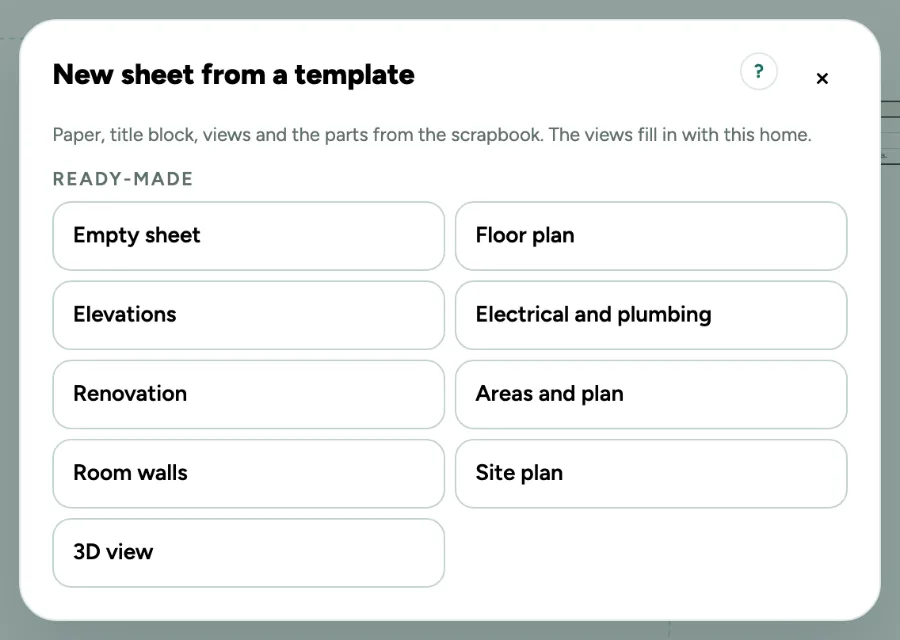
Click New sheet. Ready-made has an empty sheet, floor plan, elevations, electrical and plumbing, renovation, areas and plan, room walls, site plan and a 3D view. The views fill in with this home and get the largest scale that fits. A home holds up to 100 sheets; with 100, the window says so at the top.
2. Your own
Lay out a sheet and click Save as template in its card. In another home the views find the same level: the ground floor stays the ground floor, also when that home has a basement. An elevation of a detached building finds the detached building in the same place. Dimensions are left out: they belong to the walls of one home. Up to 30 in this browser. Images make a template large; when this browser has no room left, the message says so and nothing is saved.
3. From your office
In a team, an owner or admin clicks Save for the office: for every home, or only for the client profile of this home. Everyone in the team finds it under From your office.
4. Scrapbook
Pick Scrapbook under More in the tools, or press S. The north arrow turns with the north of the plan, the scale bar and the legend follow their view, the stamp shows your own text.
5. Your own title block
With nothing chosen, open Fields and logo in the card of the sheet. Turn standard fields off, add up to 6 fields of your own (a field and a value) and a logo of your own. Use this title block on all sheets puts it on every sheet; Save as template keeps it for your other homes.
Shortcuts
- V
- Sheets: select
Messages you may see
- You have 30 templates of your own. Remove one first.
- This browser has no room left for template Ground floor. Nothing was saved. Remove a template you no longer need, or take large images off the sheet first.
- Give the field a name.
- A title block holds up to 6 fields of your own.
- Only an owner or admin saves templates for the office.
- The office templates could not be reached. Your own templates still work.