Lock the construction, the furniture, text and lines, or the dimensions, so they cannot be picked or moved by accident.
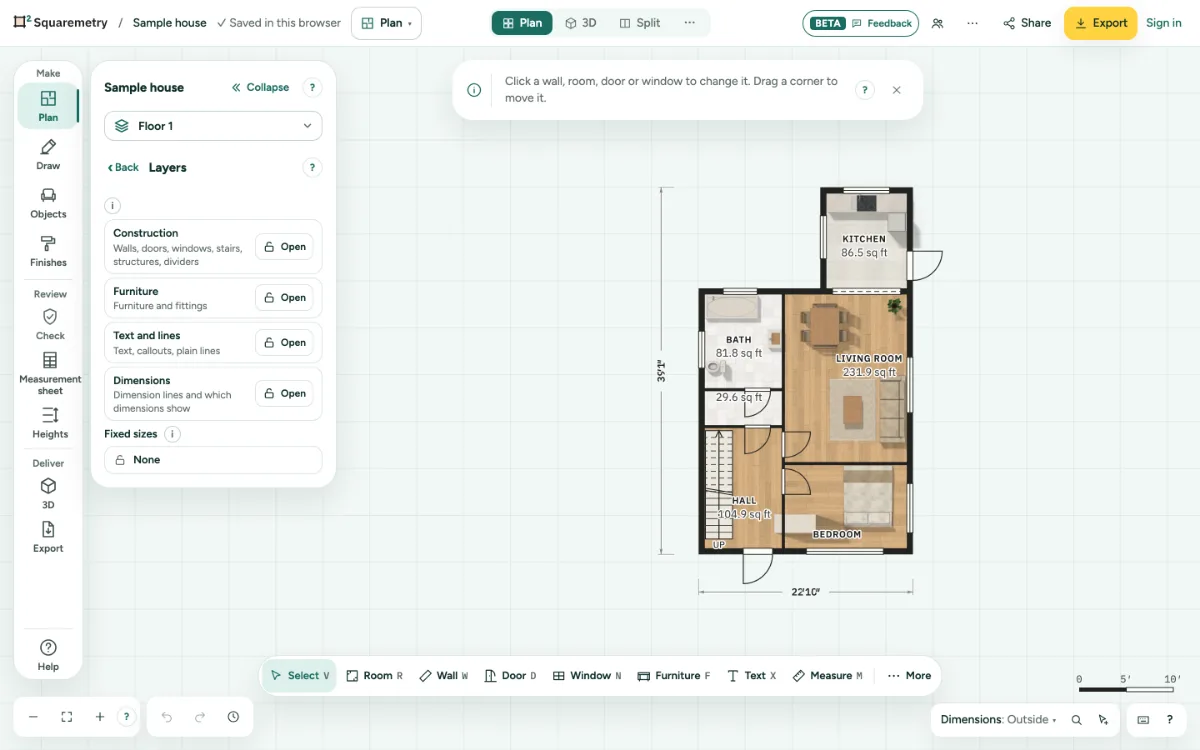
Lock layers: step by step
1. Open Layers
In the left panel, click Layers. Or right-click an empty spot and choose Layers.
2. Lock or unlock
Click the button next to a layer: Open becomes Locked, and back. A locked layer also holds for a whole floor or variant: deleting or copying a floor, and duplicating or deleting a variant, do not go through while Construction is locked. Switching variants always works.
3. Click a lock on the plan
A small lock next to a room name or a wall size means a size is fixed. Click it, or move to it with Tab and press Enter: Locked shows what is locked there, with that lock on top, and the plan lights it up. Unlock it there, lock or unlock a layer, or click Unlock all. Each change is one step to undo. Esc closes the list.
4. Fixed sizes
Under Layers, Fixed sizes shows how many walls and rooms have a fixed size. Show picks them on the plan; Release all unlocks them in one step.
5. Show lock
When something can not change because it is locked, the message has a Show lock button. It opens the same list, with that lock on top.
Parts on the screen
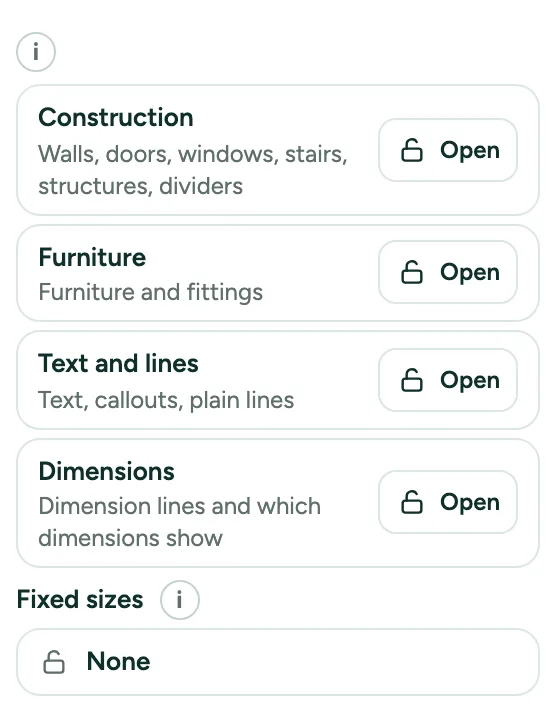
Layers. Lock or unlock construction, furniture, text and lines, and dimensions.
Messages you may see
- Construction is locked. Unlock it under Layers to change it.
- Furniture is locked. Unlock it under Layers to change it.