Scroll or pinch to zoom around the mouse. With Select, drag on an empty spot or inside a room to move the view; a click on a room opens its panel.
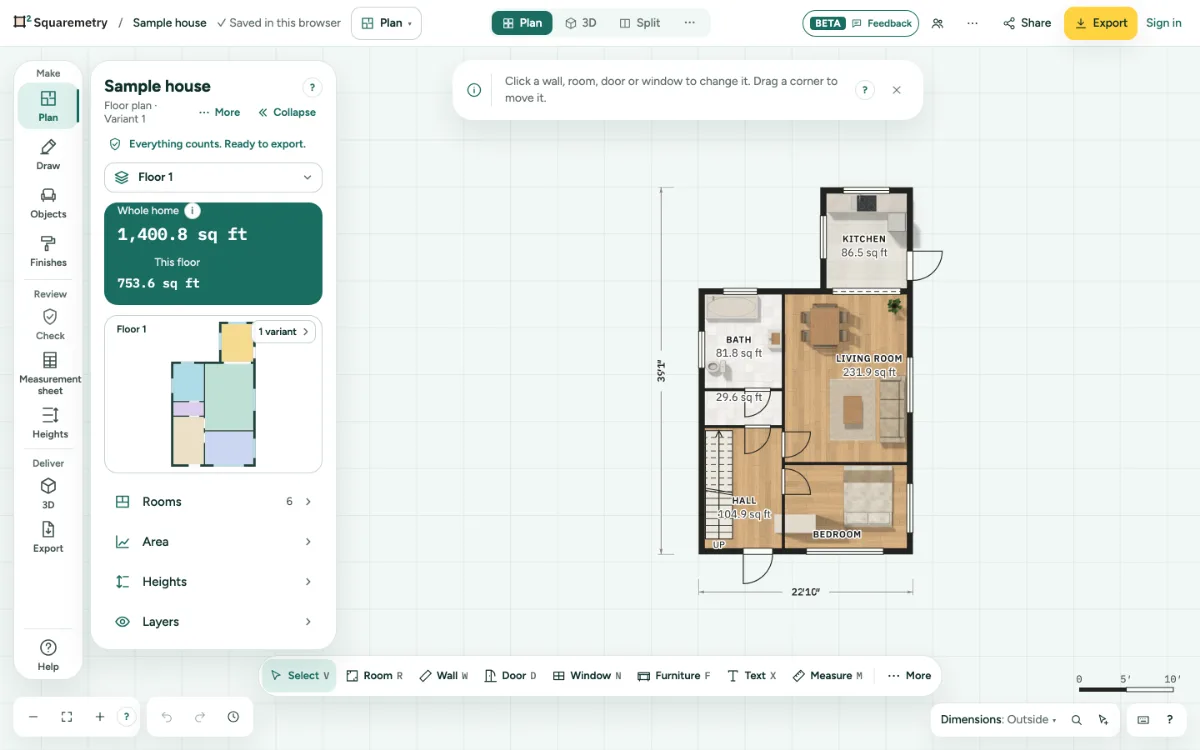
Zoom and move the plan: step by step
1. Scroll to zoom
Scroll with a mouse wheel, two fingers on a trackpad or a Magic Mouse to zoom in and out around the mouse, smoothly. Hold Shift to move the plan sideways, or Alt (Option) to move it in any direction.
2. Pinch
Pinch on the trackpad to zoom, in Safari, Chrome and Edge. Only the plan zooms, never the whole page.
3. Drag to move the view
With Select (V), drag on an empty spot or inside a room: the view follows the mouse. Click a room without dragging to choose it; its panel opens on the left. Hold Space and drag, or drag with the middle mouse button, to move the view with any tool.
4. Fit all, no percentage
At the bottom left, Zoom in and Zoom out zoom in small smooth steps, and the button between them, Fit all, puts the whole plan on the screen, in the largest free part next to or below the panels, the card and the library (on an upright tablet often below them); so do ⇧1 and a double click on the scale bar. ⇧2 puts what you chose on the screen; with nothing chosen it shows the whole plan and says so. The scale bar at the bottom right shows how big things are, from a few millimetres to a whole plot. On a narrow screen, search (⌘K) for Zoom in, Zoom out or Fit all.
5. Turn off single-key shortcuts
Keys like W for Wall or ⇧1 can get in the way, for example with speech input. In Settings, My defaults, set Single-key shortcuts to Off: then no single key does anything, also not U for the underlay or W A S D in 3D. Shortcuts with Command, Ctrl or Alt keep working, and so do Esc, Delete and the arrow keys. Alt with a letter is not a shortcut: your browser keeps that key.
6. Scrolling moves instead
Prefer scrolling to move the plan? In Settings, My defaults, choose Scrolling: Move the plan. Then pinching, or Command or Ctrl with scroll, zooms. The choice is also part of favourites, under Display.
7. Touch
On a phone or tablet, with Select one finger moves the view, a tap on a room chooses it, and two fingers zoom.
8. Garden, garage and other surfaces
Grass, paving, a driveway, gravel, a pond, a terrace and a building such as a garage, veranda or shed work like a room: a click chooses it and opens its card on the right, also in the overview in the Plan panel; dragging on it moves the view, never the surface. Move one on purpose: drag a corner point of a chosen surface, use the arrow keys (←↑→↓), or Move in the card of a building. Furniture, trees and plants on top come first: drag them to move them.
Parts on the screen

Zoom buttons. Minus and plus zoom out and in. The square in the middle fits the whole plan on the screen.
Shortcuts
- Space
- Hold and drag to move the plan
- ⇧1
- Fit the whole plan on the screen
- ⇧2
- Fit the selection on the screen