Add text, lines and labels with a pointer to the plan. They show in exports and never count in the area.
Text, lines and callouts: step by step
1. Text
Press X and click where the text goes (or press Enter for the middle of the view), then type it in the card. If you leave it without typing, the text goes away again. Pick Title, Label or Note, a colour and a turn. A turned text turns and mirrors along with Turn plan 90°, Mirror plan, a turned room and a turned or mirrored selection, and stays readable; a standing text lies flat after a quarter turn and stands up again after the next one; a straight text stays straight. Tie it to a wall, a door or window, a room or an area and it shows that size; the card names what it is tied to (this window, this door).
2. Line
Press K, or choose Line under More in the toolbar, then click the start and the end. Pick Solid, Dashed or Dash-dot, the weight and a length.
3. Callout
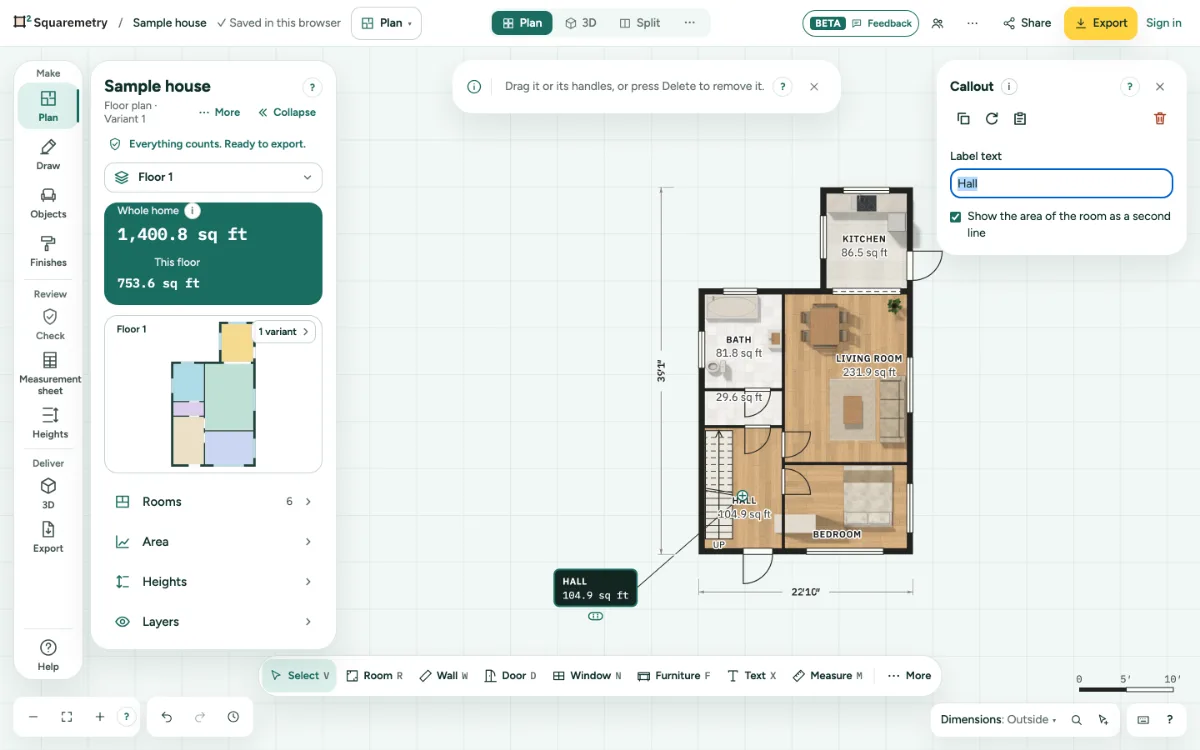
Press C, or choose Callout under More, then click what the label points at, then where the label goes. On a room it can show the area as a second line.
Parts on the screen
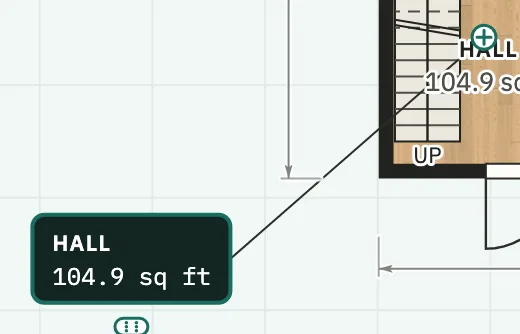
Callout. A label with a line to what it points at. On a room it can show the area.
Shortcuts
- X
- Text
- K
- Line
- C
- Callout
Messages you may see
- What this text was tied to is gone. The text stays as it is.
- The dot is not in a room, so there is no area to show.