Combine closed groups into one: add them up, cut one out of another, or keep only what they share. With area and volume.
Model: join, subtract and overlap shapes: step by step
1. Choose two or more
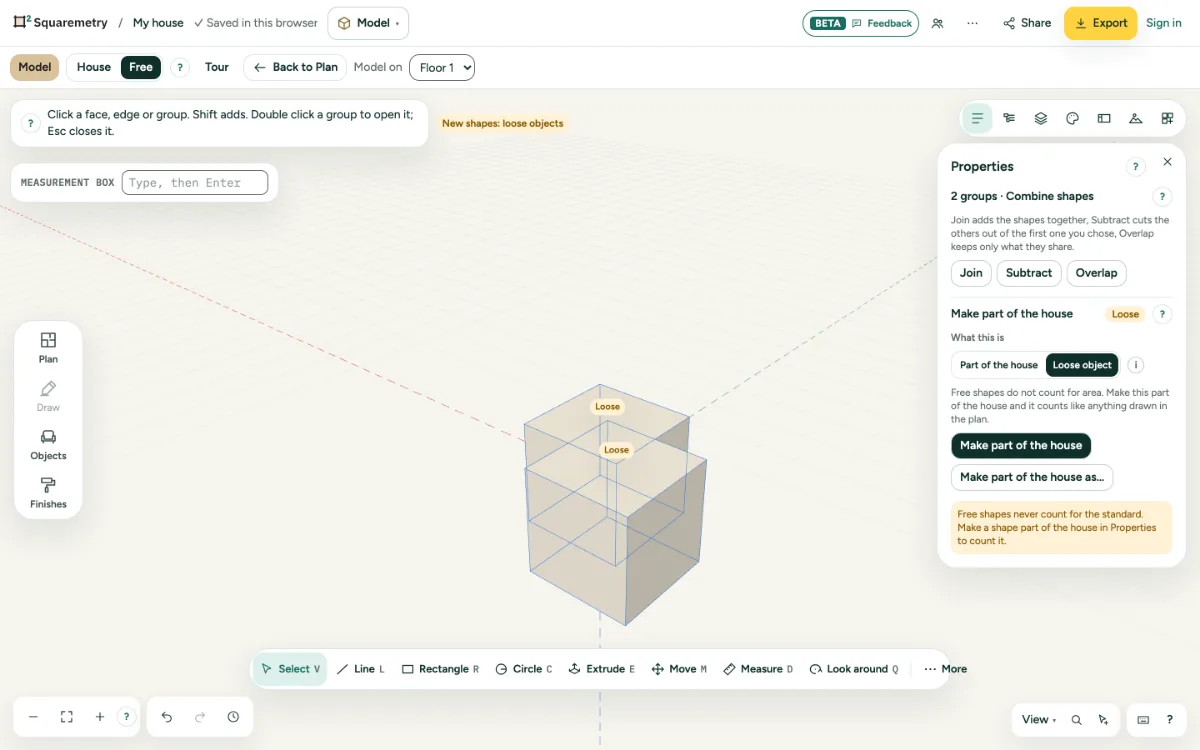
Choose a closed group, then Shift and click the others. Properties shows Combine shapes.
2. Combine
Join adds them up. Subtract cuts the others out of the first one you chose. Overlap keeps only what they share. The result is one new group with the layer and the name of the first one; if one of them was a loose object, the result is loose too. A group with groups inside counts with everything in it. A locked group stops it: unlock it in Overview first.
3. Cut where faces meet
For loose faces that pass through each other or through a group: Cut where faces meet adds edges along the line where they meet.
4. Area and volume
Properties shows the area of chosen faces and the volume of a closed group.
Messages you may see
- Nothing is left: these shapes do not overlap.
- Nothing is left: the second shape covers the first one completely.
- Edges added where faces meet.
- No faces meet here.
- Group 1 is locked. Unlock it in Overview first.