Put groups on a layer to show or hide them together. The overview lists every group, also groups inside groups.
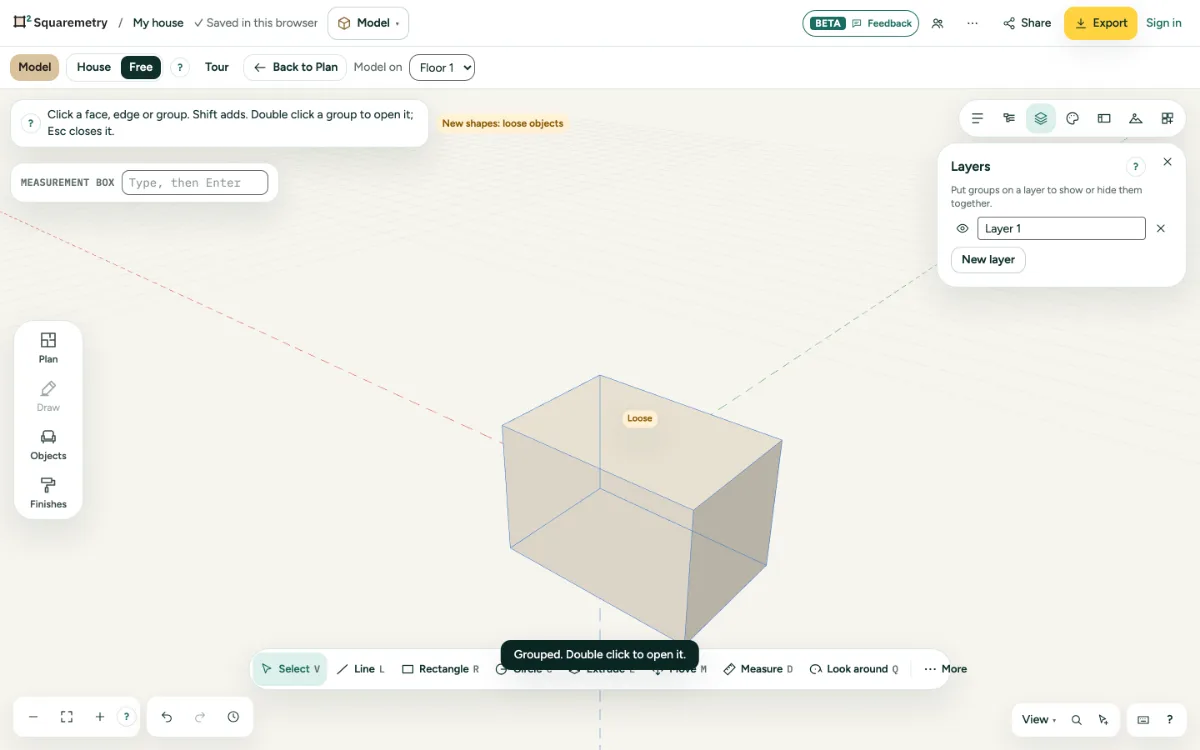
Model: layers and the overview: step by step
1. Layers
Open Layers on the right, click New layer and give it a name. Choose a group and pick its layer in Properties.
2. Show or hide
The switch next to a layer hides all its groups at once. A saved view remembers which layers were hidden.
3. Overview
Open Overview to see every group, also the groups inside a group. Click a row to choose it; the eye hides it, the lock keeps it from changing. Every row has its own eye and lock, so here you also unlock or show again a group inside a group; the icon shows the state: an open lock, or a closed lock when it is locked. Locking the group you are working in closes it. Show lock in a message brings you here, to the lock of that group.
Messages you may see
- Layer deleted. Its groups have no layer now.
- Hidden. Show it again in Overview.