Raised letters with a height and a depth, such as a house number on the front wall. 3D text is a free shape: it never counts for the area.
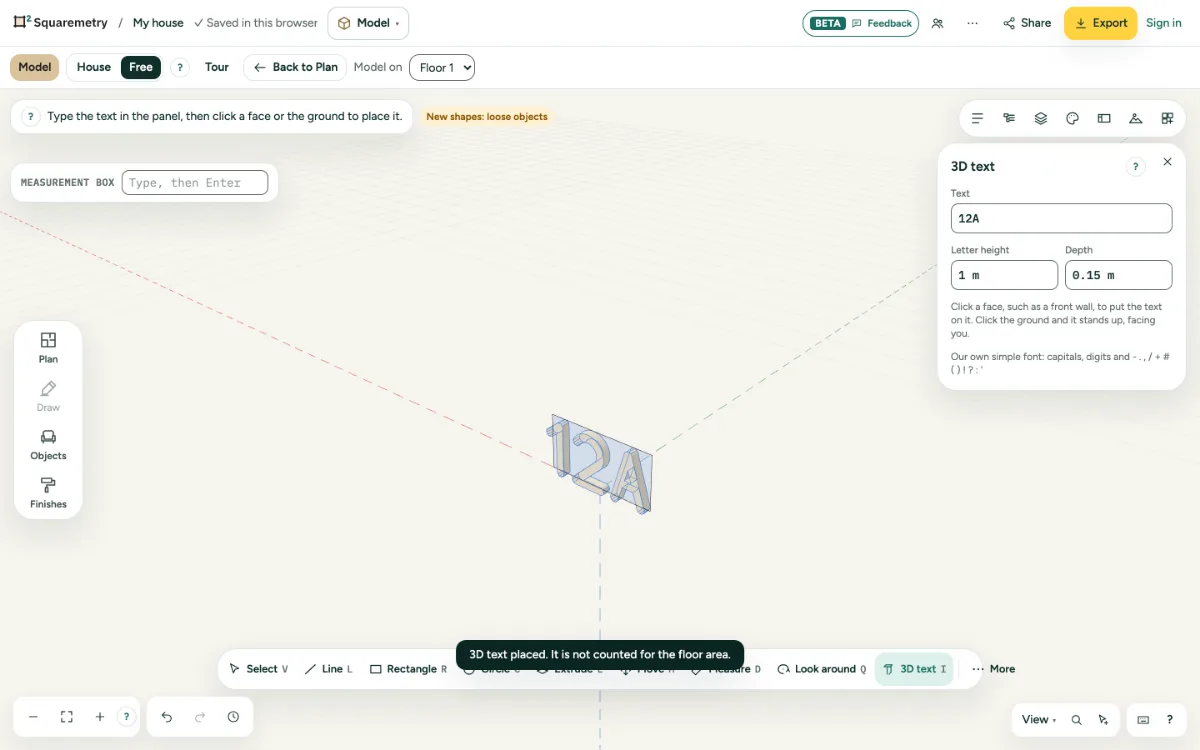
1. Choose 3D text
Press I or click 3D text under Draw. The panel 3D text opens on the right.
2. Type the text and sizes
Type the text, the letter height (1 cm to 5 m) and the depth (1 mm to 1 m). The font is our own simple one: capitals, digits and a few signs. Small letters become capitals, an accent falls away.
3. Click to place it
Click a face or a wall of the house: the text lies on it, centred on your click, and sticks out by the depth. Click the ground: the text stands up and faces you.
4. One group
Each text is its own group in one step. Move, turn or paint it like any group; it shows in 3D, on the plan and in GLB and OBJ.
Shortcuts
- I
- Model: 3D text
- ⌘Z
- Undo
On Windows and Linux, use Ctrl where the Mac has ⌘.
Messages you may see
- 3D text placed. It is not counted for the floor area.
- Type a text first.
- Not in the font, left out: €
- Type a letter height between 1 cm and 5 m.